
Learn Client Area
 Last
Updated: 01/09/2020
Last
Updated: 01/09/2020
 ( 4 minutes reading )
Two-Factor Authentication (2FA) is a security method used to confirm the user's identity. Two-Factor Authentication will provide a higher level of assurance and will defend your HostArmada Client Area (“Client Dashboard”) from various attacks, such as Brute-force, hackers, keyloggers and other threats. Enabling 2FA will oblige you to provide a security code obtained from the smart device configured for the purpose, in addition to your login credentials.
Before we step into the configuration of 2FA, note that you will need to download and install a 2FA app on your smart device. Google Authenticator and Microsoft Authenticator are free to use and available for download on Google Play Store and iOS App Store. You will need the app in order to scan the QR code and connect the desired smart device to your HostArmada Client Area.
To begin, log in to your HostArmada Client Area and click the arrow icon next to the “Hello, Your Name” message in the top-right corner of the page. Select Edit Account Details from the list of options.
.png)
Go to the Security Settings tab and click on the Click here to Enable button to start the process.

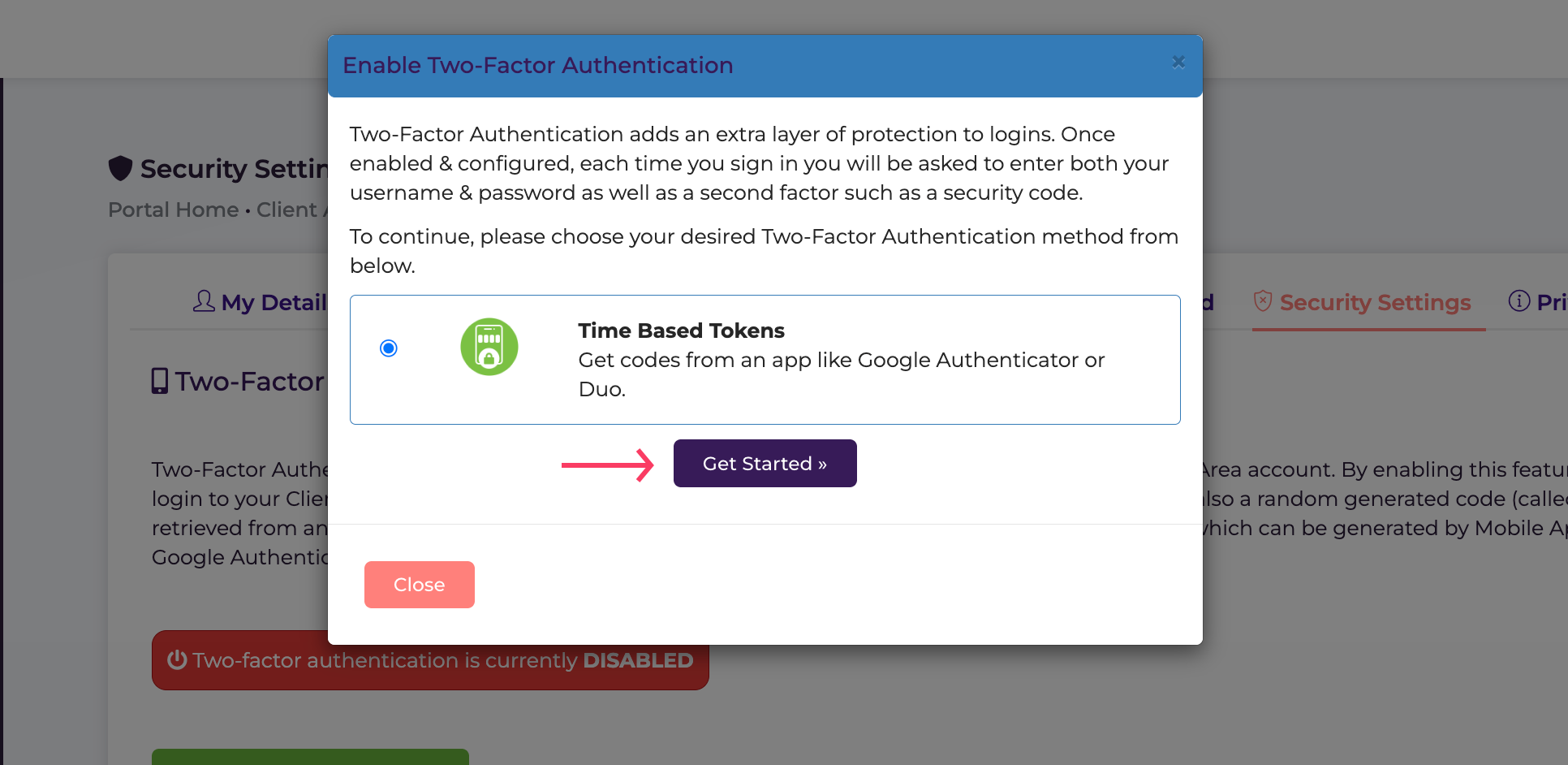
When this is done, you will be presented with a new dialog, and you will need to click the Get Started button to initiate the configuration.
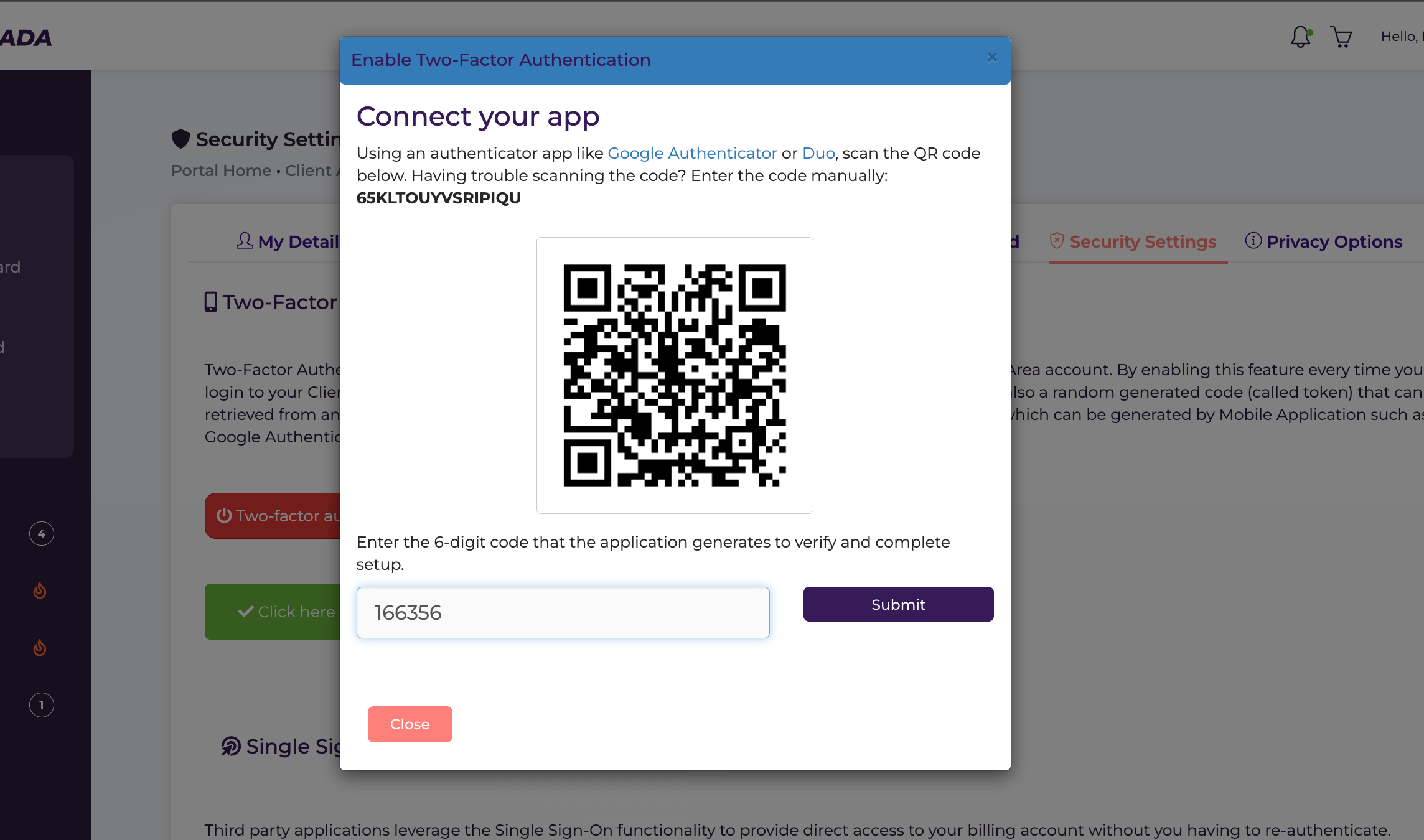
Once this is done, the QR code will be displayed, and you will need to scan it using the 2FA app on your smart device. As soon as the code is successfully detected, you will be provided with the required 6-digit code, and you will need to enter it into the empty field right below. Afterward, just click on the Submit button to finalize the configuration.
On the final step, you will be provided with your backup code. This is the code you will be required to enter to recover access to your HostArmada Client Area if you cannot complete Two-Factor Authentication for some reason. Please note that it is essentially important to save and keep the code on another, independent device.

Note: Now that Two-Factor Authentication is successfully enabled in your HostArmada Client Area, whenever you attempt to log in after submitting your login credentials (email address and password), you will also be required to enter the security code obtained from the 2FA app on your smart device.
As previously pointed out, if you are unable to provide the required security code, you can verify your identity by entering the backup code provided in the final step of the 2FA configuration.
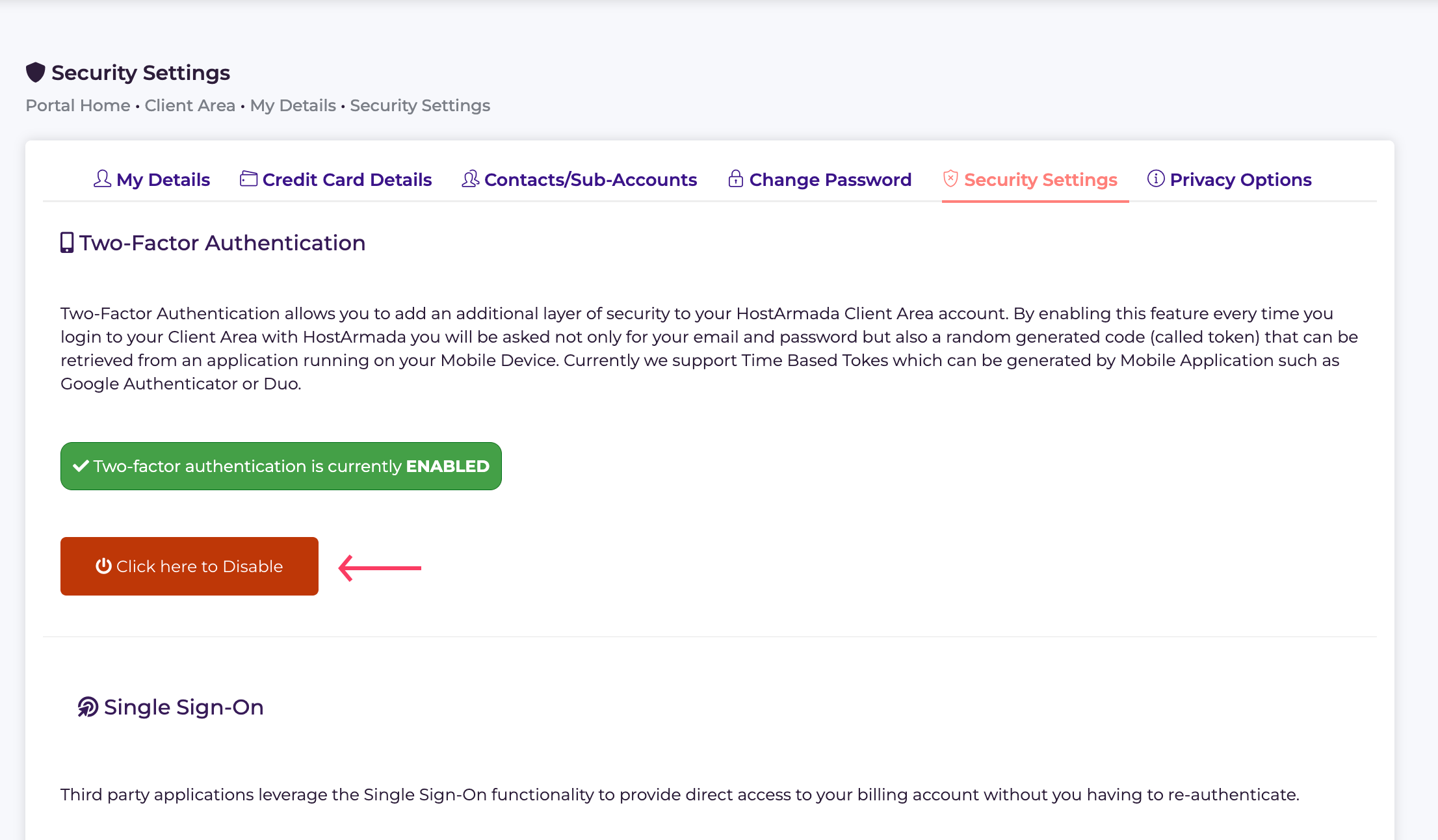
If you experience any difficulties with 2FA, you can always disable it by clicking the Click here to Disable button located under the Security Settings tab. You will be asked to enter your Client Area password, and once it is confirmed, the 2FA will be automatically disabled.
As you can see, enabling Two-Factor Authentication is quite simple and straightforward. We hope you were able to complete the process without any difficulties. In case you require further assistance, you are always welcome to contact our Support Team.

Emman is a Content Manager at HostArmada where she helps make complex topics accessible for readers around the world. With 5+ years of experience in crafting SEO content, she’s passionate about making tech topics easy to understand. In her free time, Emman enjoys traveling and watching Formula 1/E races.
Learn more about Client Area in the other tutorials that we have:
