
 Last
Updated: 02/02/2026
Last
Updated: 02/02/2026
 ( 10 minutes reading )
Your profile settings in Plesk define important account details such as your contact information, password, interface preferences, and language settings. Keeping this information accurate ensures smooth communication, proper notification delivery, and a personalized user experience within the control panel.
Plesk makes it easy for each user - whether administrator, customer, or reseller - to update their profile details at any time directly from the dashboard.
In this tutorial, we will guide you through the process of accessing and editing your profile settings in Plesk.
First and foremost, please ensure you are logged in to your Plesk control panel. To do that, please enter your IP address, hostname, or domain name inside your web browser’s search bar and add “:8443” at the end. It should look something like: “https://yourdomain.com:8443”. By doing so, you will be prompted by a login form that requests your username and password.

After logging in with your username and password, Plesk will automatically display the “Websites & Domains” page, which will serve as the index page from where you can manage everything related to your websites and domains on Plesk.
To open your user profile settings, please click on your username in the top right corner. Performing this action will open a drop-down menu, and from the available options, please select the “Edit Profile” option.

This will open your account profile page, where all editable settings are located.
On the profile index page, you can update your personal details, including:
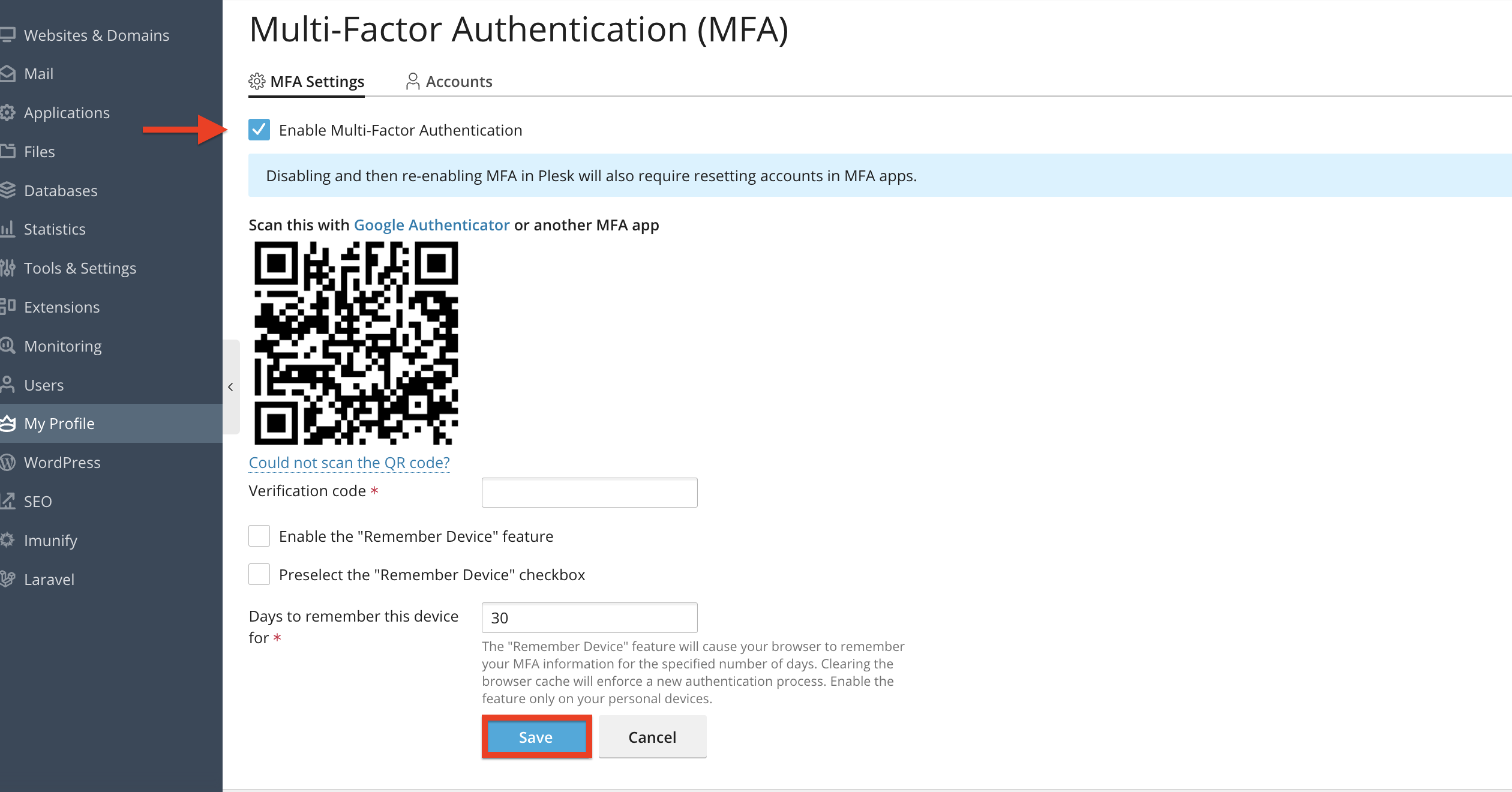

Once you are finished editing the above, please click on the “Apply” button at the bottom of the page to save them and remain on the page, or click on the “Ok” button to save them and be redirected to the previous page.

These details are used for notifications, administrative contact, and communication through Plesk.
To edit your personal contact information in Plesk, please open the “Contact Details” tab under the “Edit Profile” page.

Let’s go through all of the available details you can edit under this tab.
After entering all the changes, please click on the “Apply” button at the bottom of the page to save them and remain on the page, or click on the “Ok” button to save them and be redirected to the previous page.
After saving your adjustments:
This ensures your new settings have been applied successfully.
As you can see, Plesk provides an easy and intuitive way to manage and edit your personal profile settings. By keeping your information up to date and adjusting your interface preferences, you can ensure a secure and personalized experience within the control panel.
We hope this tutorial was helpful, and we kindly encourage you to review your profile settings periodically - especially your contact information and password - to maintain a safe and accurate hosting environment.

Nikola is an accomplished tech-savvy extraordinaire with over six years of experience in the web hosting field. He started as a customer care representative and quickly rose the ranks to become a support supervisor and, eventually - the head of the technical department in HostArmada. His deep understanding of the client's needs, combined with his technical knowledge, makes him the perfect man to create the ideal harmony between client satisfaction and professional problem-solving. You will often find him creating helpful tutorials, articles, and blog posts that help existing customers get around.
Learn more about Plesk in the other tutorials that we have:


