
 Last
Updated: 01/20/2026
Last
Updated: 01/20/2026
 ( 9 minutes reading )
Managing active sessions in Plesk is important for both security and system administration. The Active Sessions feature in Plesk allows you to see which users are currently logged into your control panel, where they are connecting from, and what operations they are performing.
This is especially helpful for:
In this tutorial, we will guide you through the process of viewing and managing active sessions in Plesk.
To access the File Manager in your Plesk control panel, please make sure you have logged in to your Plesk control panel. To do that, please type in your IP address, hostname, or domain name inside your browser search bar and add “:8443” at the end. It should look something like: https://yourdomain.com:8443. By doing so, you will be prompted by a login form that requires your username and password.

Once logged in, Plesk will automatically display the “Websites & Domains” page, which will be the index every time. In the middle, you will see a table section containing a list of all your existing domains.
To view the current active Plesk sessions, please locate the “Tools & Settings” option on the left side of the screen and click on it.

After performing the action above, please click on “Active Sessions”, located under the Security section.

This will bring you to a list of all users currently logged into your Plesk environment.
On the Active Sessions page, you will see a table containing information such as:

This overview helps you identify who is accessing your server and from where.
If you notice an unfamiliar session or want to terminate an idle or abandoned one, you can use the checkbox on the left side of the row corresponding to the user for whom you wish to terminate the session.
Afterward, please click the “Close” button located above the table section, where all user sessions are populated. You will receive a prompt that you need to confirm, and after doing so, the session will be terminated.

Performing the action above will immediately log the user out of Plesk.
Recommendation: Ending a session does not disable the user account. If you suspect unauthorized activity, please also change the user’s password.
The session list will not be refreshed automatically, which means that if new sessions are started, you will not be able to view them.
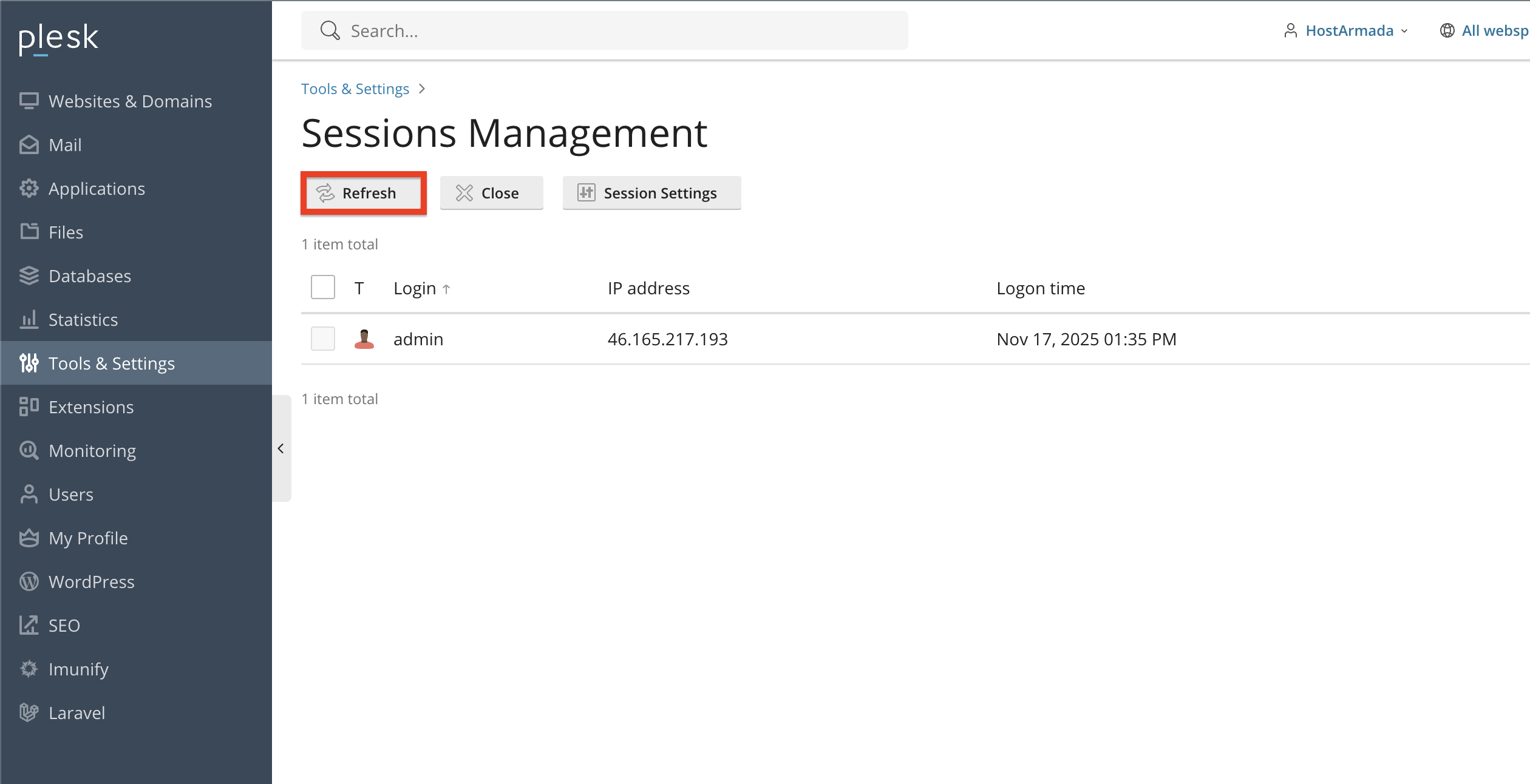
To address that, you can click the “Refresh” button at the top of the table section, which will immediately populate it with new sessions that you were not able to see previously.
Plesk automatically ends sessions after a period of inactivity. You can manually modify this inactive to last longer, based on your or your customer’s preferences. Additionally, you can allow IP address changes during a session, ensuring the logged-in user remains online without being logged out.
IMPORTANT: Allowing IP address changes during a session is a serious security breach, and we do not recommend using this feature.
To perform the actions mentioned above, please click on the “Sessions Settings” button, located above the table section, on the right side of the “Close” button.

After being redirected to the settings page, you will see the available options.

To save the changes, please press the “Ok” button located at the bottom of the page.
As you can see, Plesk provides a simple and effective way to monitor and control active user sessions. By reviewing active sessions regularly and terminating any suspicious or idle ones, you help keep your hosting environment secure and well-maintained.
We hope this tutorial was helpful, and we kindly encourage you to use the Active Sessions feature whenever you want to check who is accessing your control panel.

Nikola is an accomplished tech-savvy extraordinaire with over six years of experience in the web hosting field. He started as a customer care representative and quickly rose the ranks to become a support supervisor and, eventually - the head of the technical department in HostArmada. His deep understanding of the client's needs, combined with his technical knowledge, makes him the perfect man to create the ideal harmony between client satisfaction and professional problem-solving. You will often find him creating helpful tutorials, articles, and blog posts that help existing customers get around.
Learn more about Plesk in the other tutorials that we have:


