The default date.timezone directives for the PHP service on our Shared Hosting Servers will be the following:
- Fremont - PDT/PST
- Newark - EST/EDT
- Dallas - CDT/CST
- Toronto - EDT/EST
- London - GMT/BST
- Frankfurt - CET/CEST
- Mumbai - IST
- Singapore - SGT
- Syndey - AEST/AEDT
You have the option of changing that from your cPanel depending on what kind of service you are utilizing with HostArmada.
Shared Hosting Services
Here are the steps you should follow if you are using one of our HostArmada shared hosting plans:
- Log in to your cPanel.
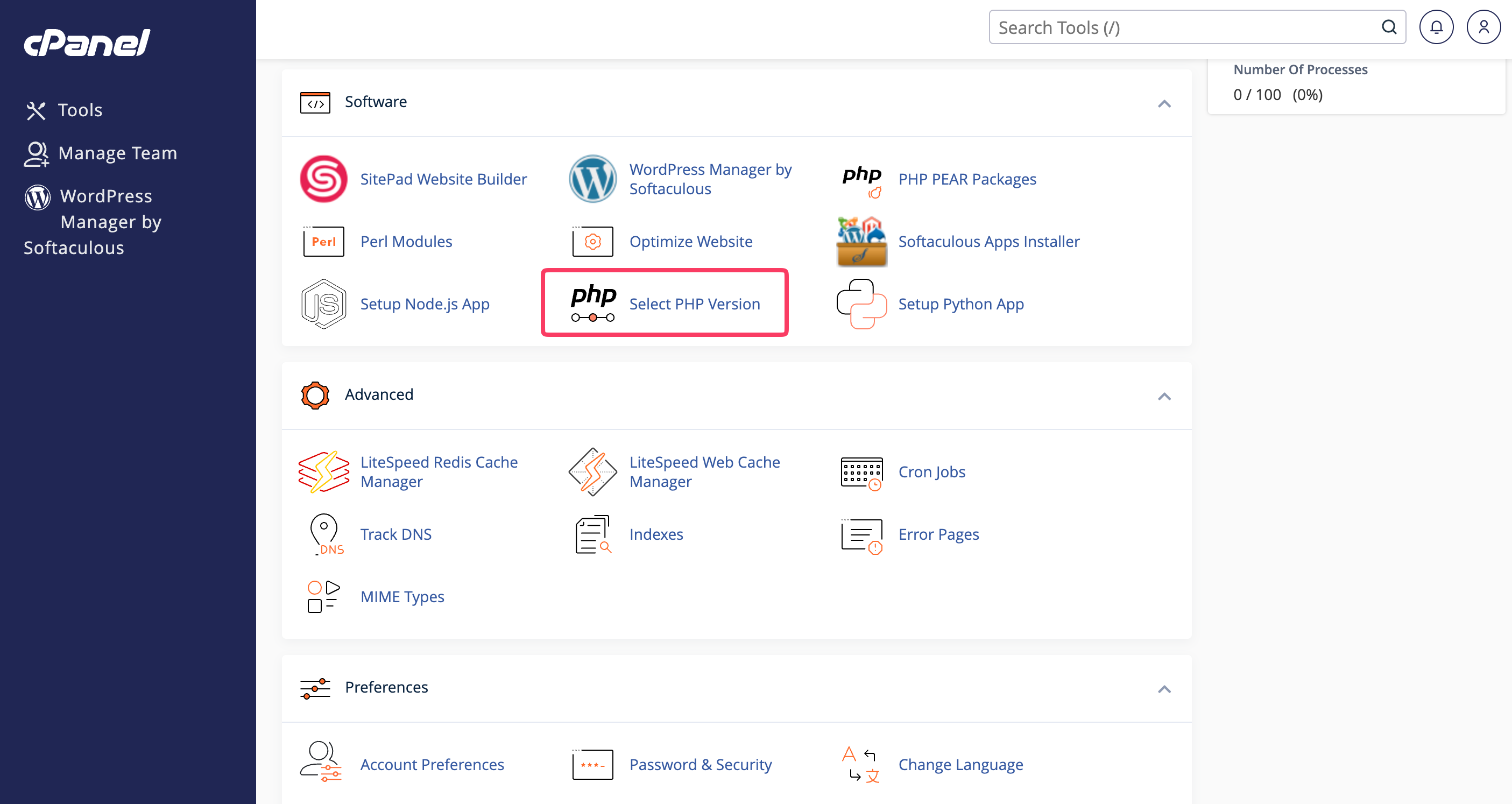
- Navigate to the Software section and click on the Select PHP Version option.
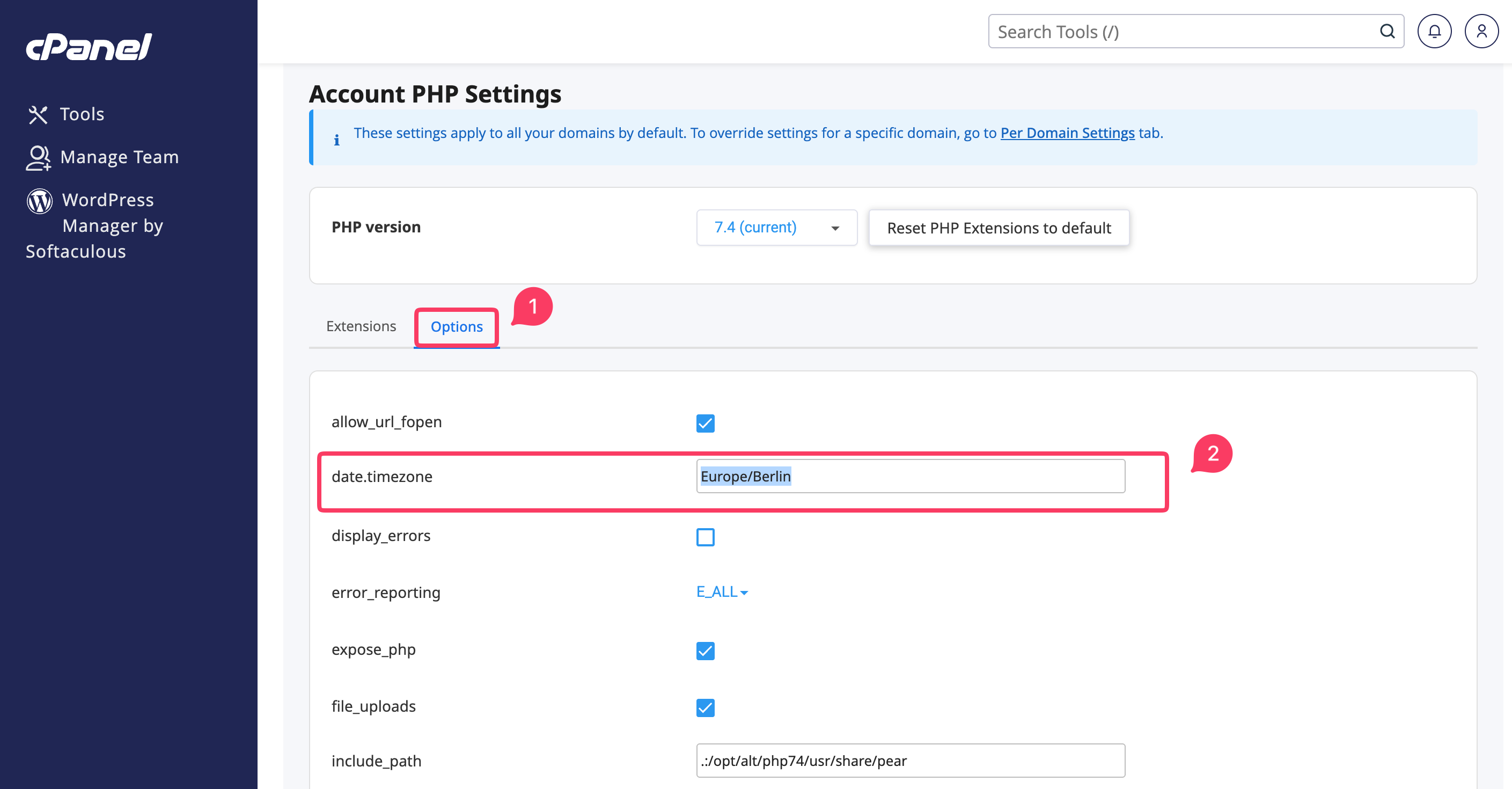
- Click on the Options tab.
- On the next page, you will see many options listed. Locate the date.timezone directive and enter the value corresponding to the desired timezone. If you are not sure about it, you can check all available time zones supported by PHP on PHP's official website.
- Once you enter the desired timezone, please click anywhere on the screen.
- With this done, you will see a pop-up at the top right corner of the screen indicating that the new timezone was successfully saved.
VPS/Dedicated Servers
Changing this directive on our VPS and Dedicated Servers is different. To change it, please follow these steps:
- Log in to your cPanel.
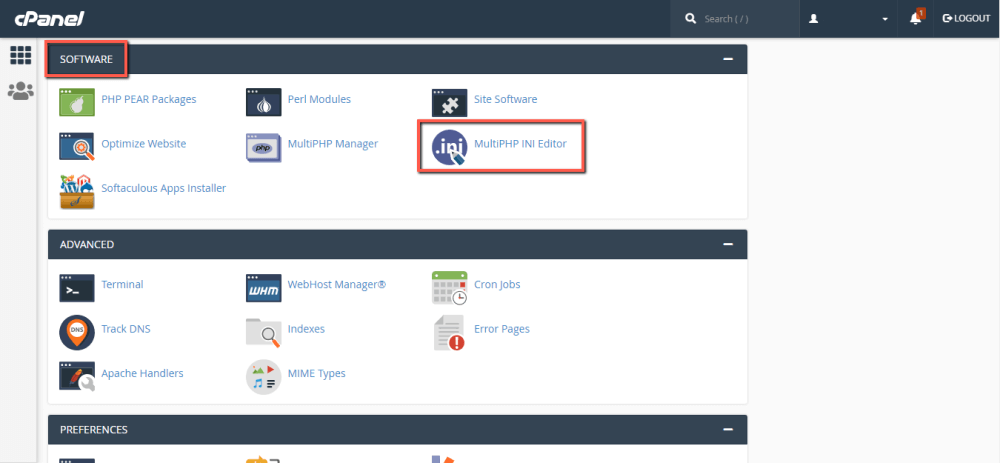
- Navigate to the Software section and click on the MultiPHP INI Editor option.
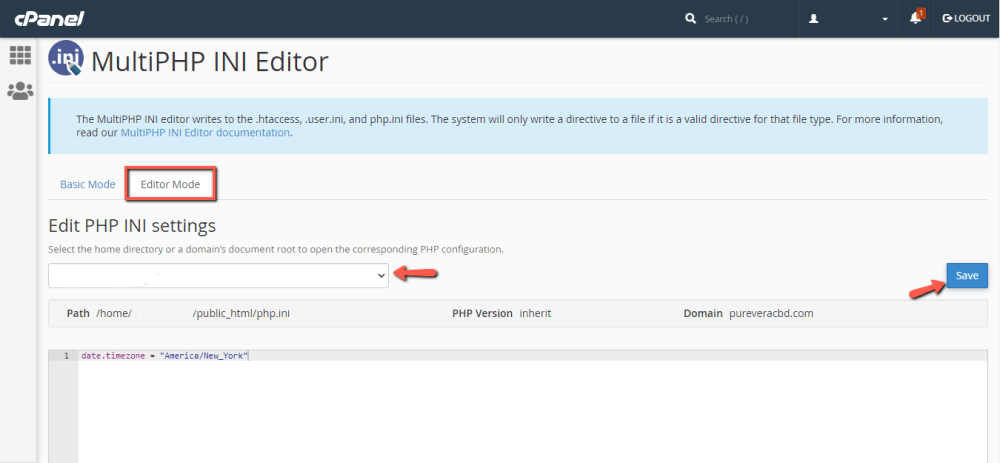
- You will be redirected to a page containing two tabs - "Basic Mode" and "Editor Mode". Please select the "Editor Mode".
- From the dropdown, located under the "Edit PHP INI settings", select the website you want to change the directive. Choosing a site will open a content box underneath. To set it up, please enter the following:
date.timezone = "<DesiredTimezone>"
Here is an example you can follow:
date.timezone = "America/New_York"
If you are not sure about the value representing your desired timezone, you can check all available timezone supported by PHP on PHP's official website. - After entering the needed timezone, please press the "Save" button located on the top right side of the content box.
- If the changes were accepted, you are going to receive a green notification message: "Success: Successfully saved the changes." on the top right side of the screen.
