
Learn Client Area
 Last
Updated: 01/09/2020
Last
Updated: 01/09/2020
 ( 7 minutes reading )
In this tutorial, we will introduce the Invoice Management section available under your HostArmada Client Area (“Client Dashboard”). We will guide you on how to review the entire invoice history, including all invoices paid to HostArmada, starting from your initial service purchase. We will also show you how to proceed with payments for your service renewal invoices, which will be generated seven days prior to the service due date. Upon invoice generation, you will be notified by email to the address associated with your HostArmada account, and you will be able to process payment at the most convenient time during this period.
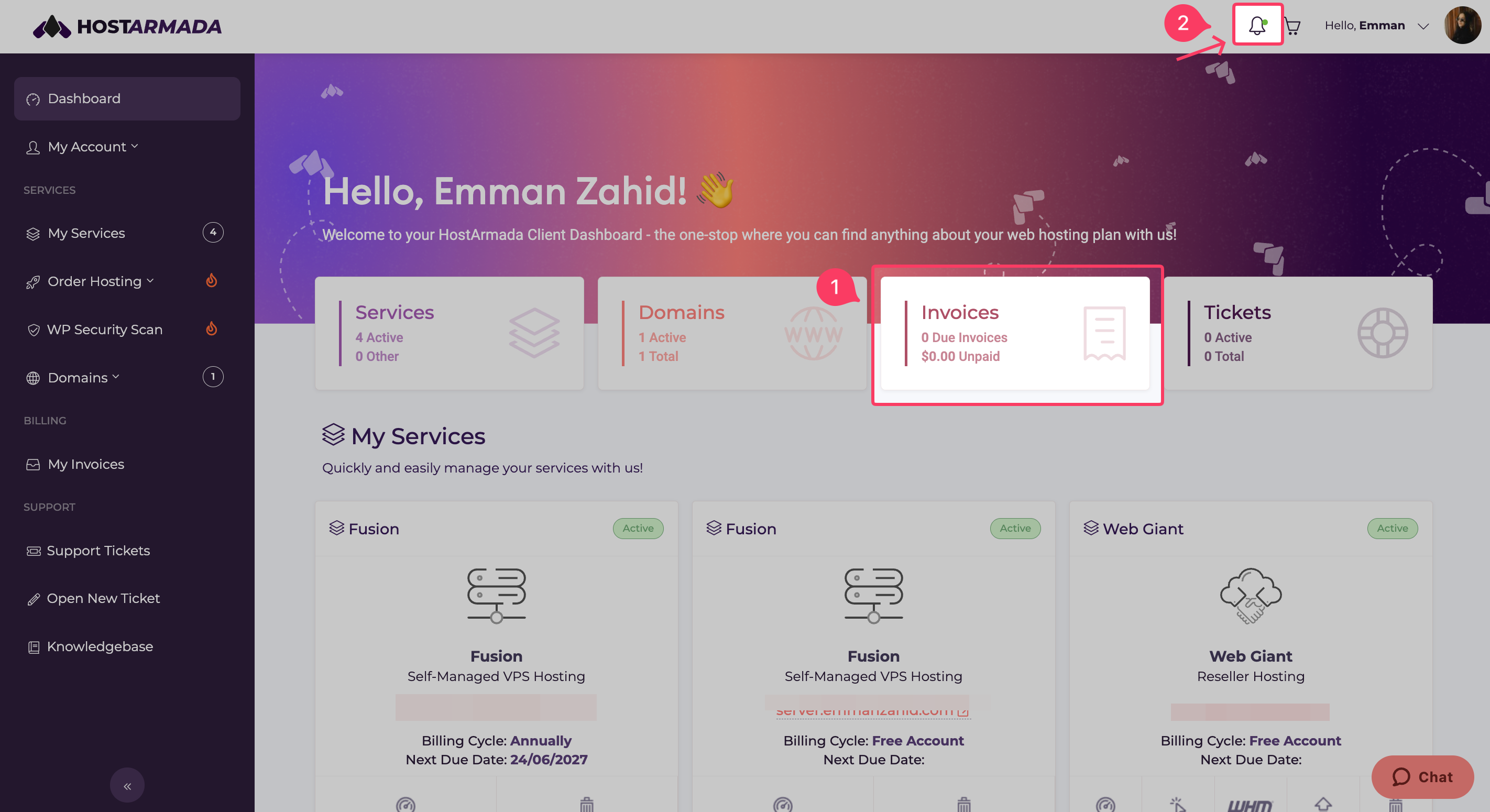
To begin, log in to your HostArmada Client Area. If you have due invoice(s), they will be indicated directly on your Home Page under the “Invoices” block. The information shown will include the number of unpaid invoices and the total amount due. Using the Quick Access buttons, you can review all unpaid invoices or proceed directly with payment.
The bell icon located at the top navigation bar will display all important notifications related to your services with us, including your service renewal invoices; therefore, it is strongly recommended that you check it.
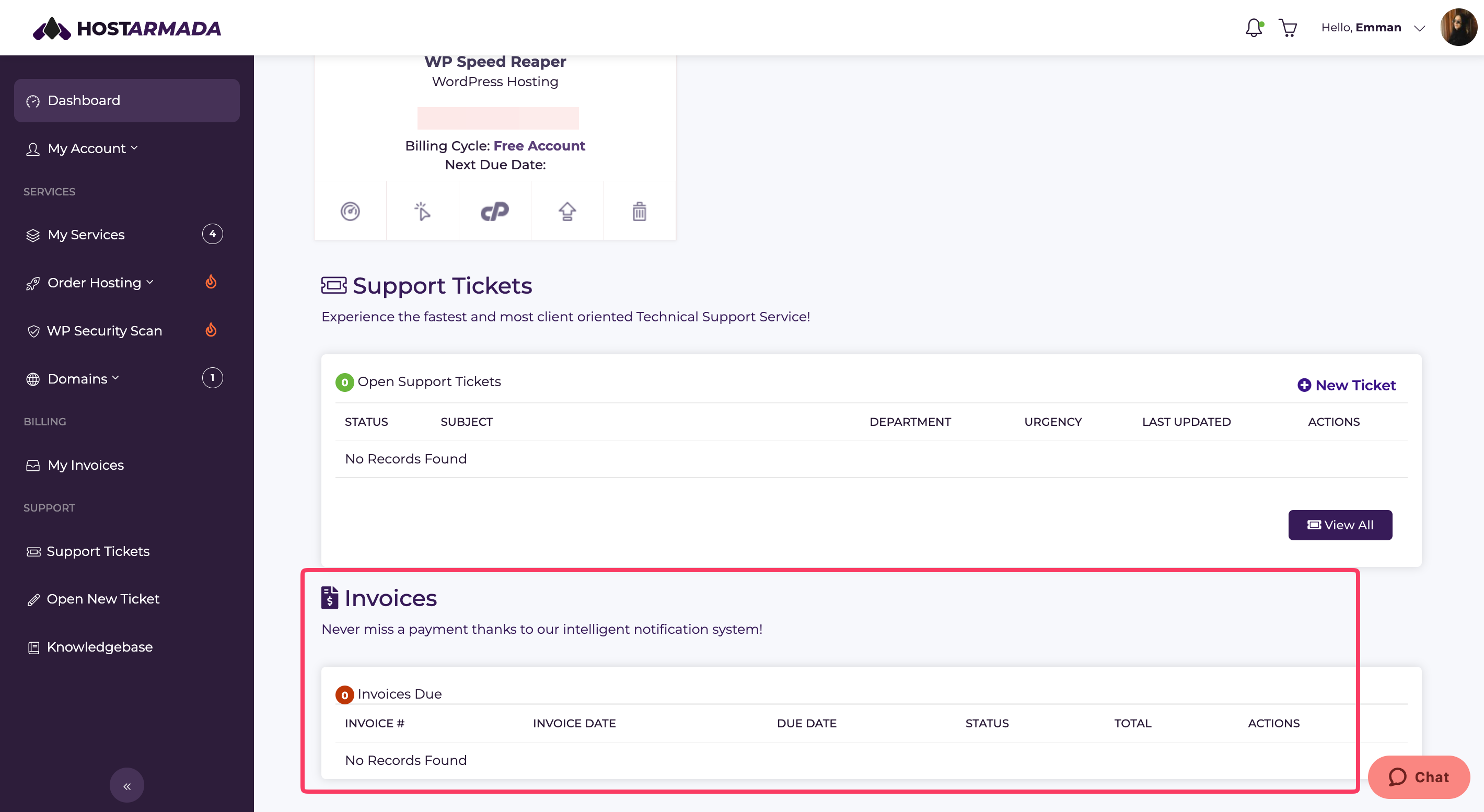
If you scroll down to the bottom of the Home Page, you will see a list of all currently unpaid invoices. You will be able to review the invoice number, the date of invoice creation, the due date, and the invoice status. By clicking the magnifying glass icon, you will be taken to the invoice itself, where you can review, print, download, and pay it.
Now that we have reviewed all the information contained on the Home Page concerning your invoices, you are ready to move forward to reviewing your invoice history and processing service renewal payments.
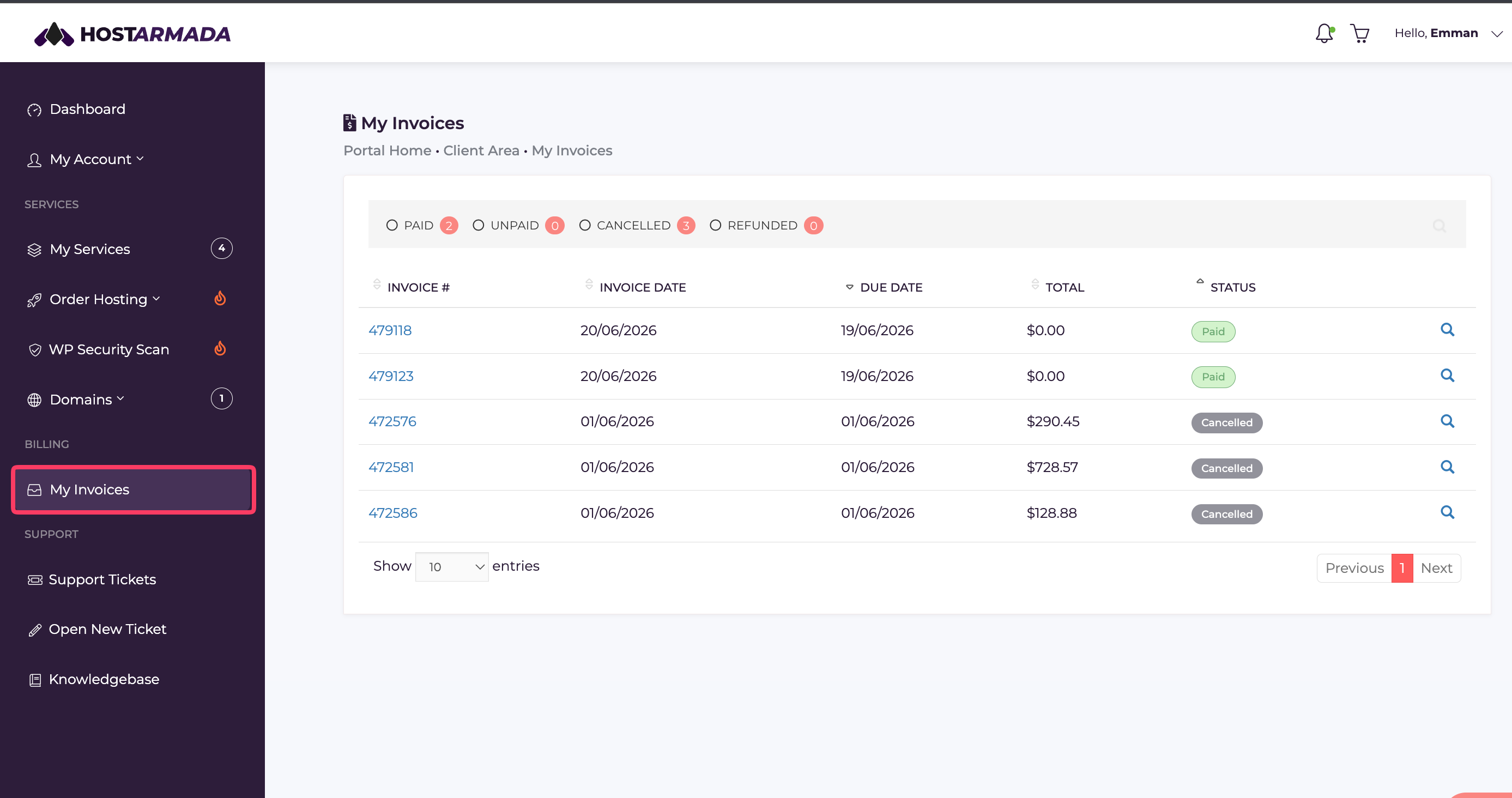
The entire history of all invoices paid to HostArmada for your services is stored and can be reviewed under the “My Invoices” section in your Client Area. To access it, please click on “My Invoices” located on the left-hand side menu bar.
Similar to the Home Page, you will be provided with an option to pay all due invoices by clicking the “Pay All” button displayed under the orange bar at the top of the page.
The purple bar below indicates the number of invoices that fall into the given status. By clicking any of the statuses, you can sort and list all invoices assigned to it. You can also use the search option in case you are looking for a specific invoice.
In the list of invoices, you will see the invoice number, issue date, due date, total amount, and status.
Now, let’s review a particular invoice and guide you on how to process the payment.
As previously pointed out, you can process invoice payments directly from the Home Page of your Client Area as well as from the “My Invoices” page. For the sake of this example, we will review the process of paying an individual invoice.
While you are on the “My Invoices” page, please click the arrow icon next to the corresponding invoice, and you will be taken to the invoice, which will look similar to the one shown in the screenshot example below.
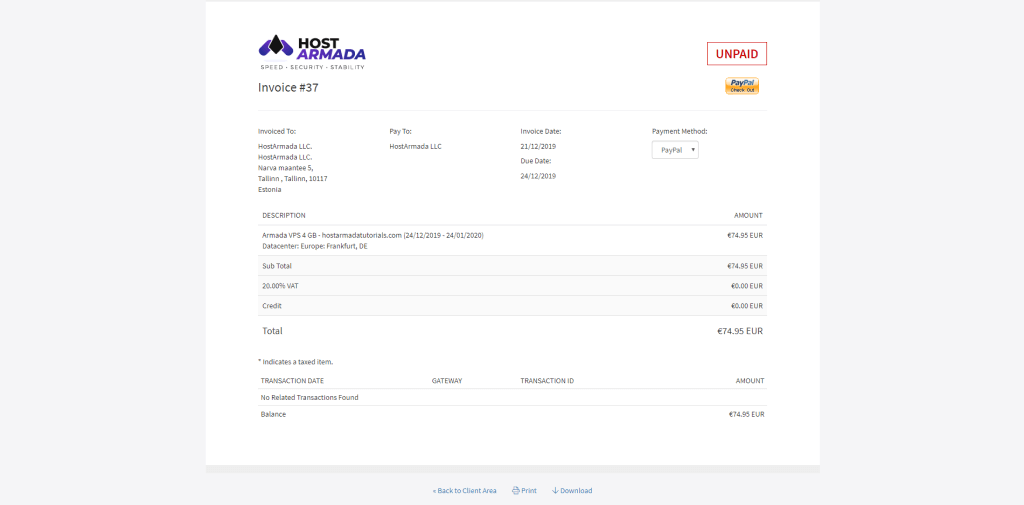
You will be able to review all the essential details of the invoice. At the top right corner of the invoice, you will see the invoice status displayed. The button positioned below is where you will need to click once you are ready to process the payment.
The first section contains your billing details, our company billing details, the invoice generation date, and its due date. In case you need to make any changes to your billing details, please find the instructions in the following guide. The “Payment Method” dropdown menu allows you to select the desired payment method that will be used.
The “Description” section indicates which service is the subject of this invoice as well as the billing period for it. Right below are displayed the subtotal, any taxes applicable to the payment, credit included in your account deducted from the invoice, and the total.
After a successfully processed payment, the last section will display the date, the gateway used, the transaction ID, and the total amount paid.
In case you need to download or print the invoice, you will find the options located right below the invoice, at the very bottom of the page.
If the payment is successfully processed no later than the invoice due date your service will be automatically renewed and no further actions will be required from your end. Please note that if the payment is after the due date of the invoice, that might not happen; therefore, please make sure to contact our Support Team so they can take any action that might be needed and ensure your service is properly renewed.
Although we believe you would have been able to handle this task on your own we hope you found the information in this guide useful. In case you did not find the answer to a particular question of yours, please do not hesitate to contact us for further clarification.

Emman is a Content Manager at HostArmada where she helps make complex topics accessible for readers around the world. With 5+ years of experience in crafting SEO content, she’s passionate about making tech topics easy to understand. In her free time, Emman enjoys traveling and watching Formula 1/E races.
Learn more about Client Area in the other tutorials that we have:
