phpMyAdmin is a free, open-source, web-based MySQL administration tool written in PHP. Using it, you can perform actions such as:
- Create a database
- Delete a database
- Modify a database table
- Add or delete database fields
- Use SQL code
- Manage your keys
This feature is fully integrated with the web hosting service we offer at HostArmada, and you can easily access it from the cPanel.
Searching for strings or integers within your database using this tool can be very useful in certain situations.
For example, when you change your website's domain, there are still entries in your database that redirect to or load content from the old domain name. PhpMyAdmin offers a wide range of features to efficiently help you find these records and replace them if needed.
Here's how you can search your database using phpMyAdmin. We are also going to introduce you to a few techniques you can use to replace all matches of your search.
- Log into your cPanel account.
- Navigate to the Databases section and click on the phpMyAdmin tool.
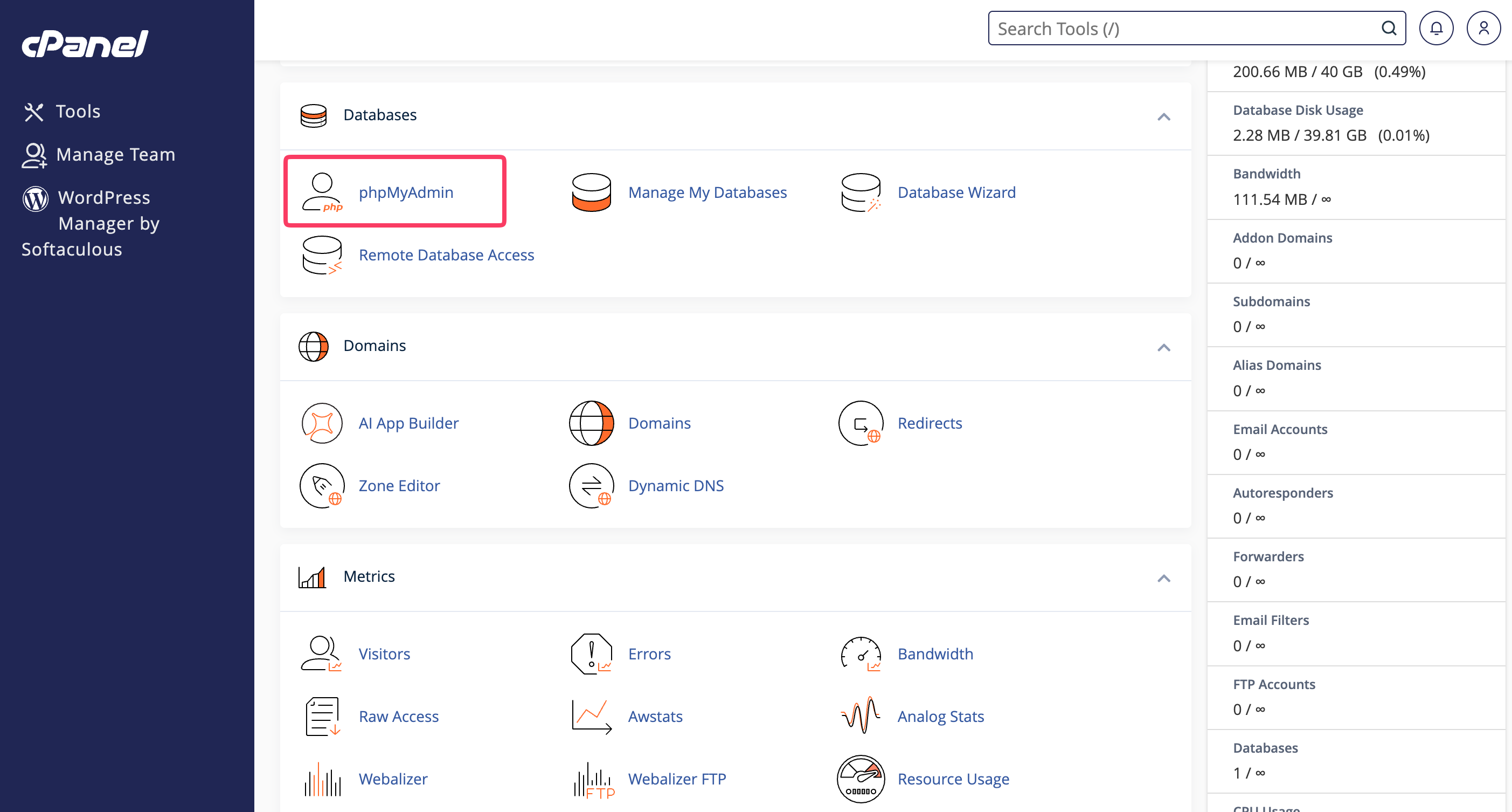
- You will be redirected to the phpMyAdmin interface. On the left side, you will see a column listing all your databases on the server.
- Click on the database where you want to perform the search. If you are not sure which database is for your website, please log in via SSH and navigate to the root directory of the application, using the Linux Command Line Basics. When you are inside, please run the following command:
grep 'username_' * -Ril
Here is an example:grep 'hostaramda_' * -Ril
- The output will show you your website's database. When you are sure which database is correct, click it.
- After doing the above, all tables will be displayed in the middle of the screen. Above them, you will see a lot of tabs. Each of these tabs serves a specific purpose. The one you need to click on is the Search tab.

- After clicking it, you will be redirected to the Search page, where you will see a text field at the top. Inside this text field, please type in the string you want to find.
- Underneath, you will see the Find section, containing a few options you can choose from. Please select the all of the words option using the radio button.
- Below is the Inside tables section. There will be a content box inside, allowing you to select the database table you want to search in. Above the content box, there will be two buttons - Select all and Unselect all, allowing you to either select or unselect all the tables of your database, held in the content box.
- Lastly, beneath the content box, you will see a text field. You may use it to specify the column within the specific database table(s) where you want the search to be performed.
- When you have configured the search pattern, please click on the Go button located on the bottom right corner of the page.

- This action will present a list of all the database tables you selected on the previous page. On the left side of this list, you will see the number of matches for every table.
