
Learn MCP
 Last
Updated: 11/12/2026
 ( minutes reading )
Connecting Mistral to your HostArmada account takes about five minutes and needs no technical skills. Once it's connected, you can ask Vibe about your invoices, hosting services, domains, and support tickets in plain language, and approve every change before it happens.
You need three things:
Set up the HostArmada connector on the Mistral web version. Once it's added, it also works in the Mistral Vibe mobile app.
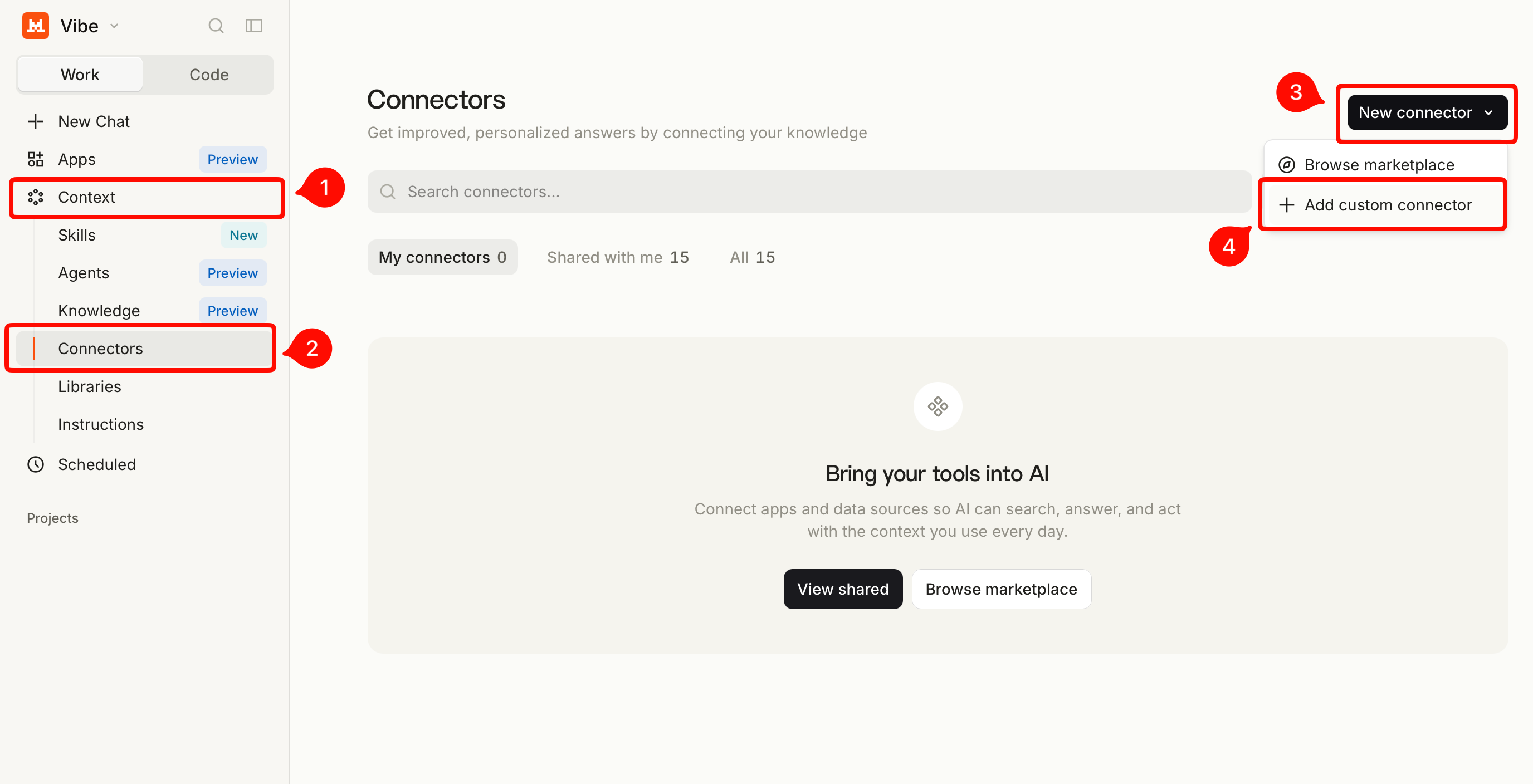
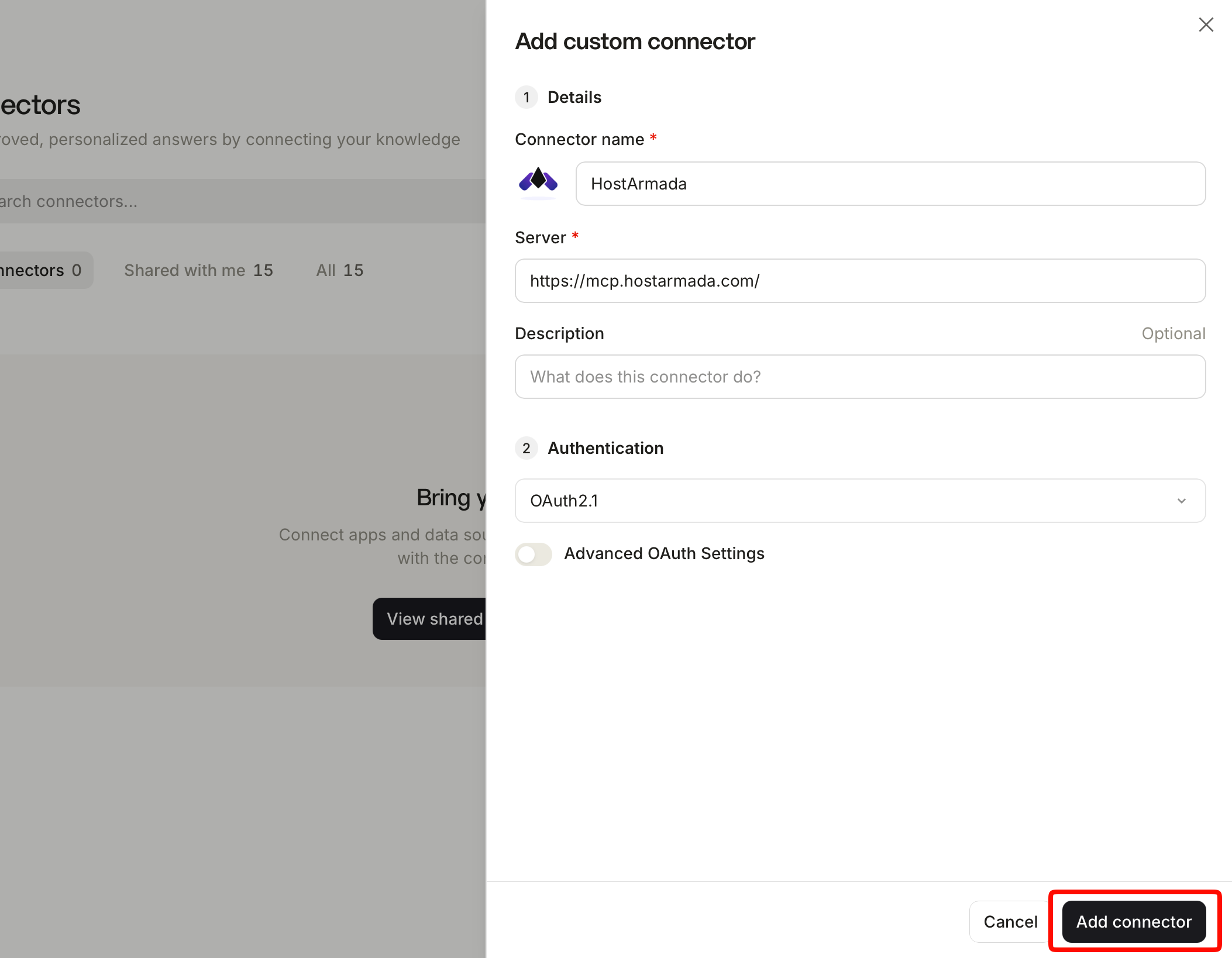
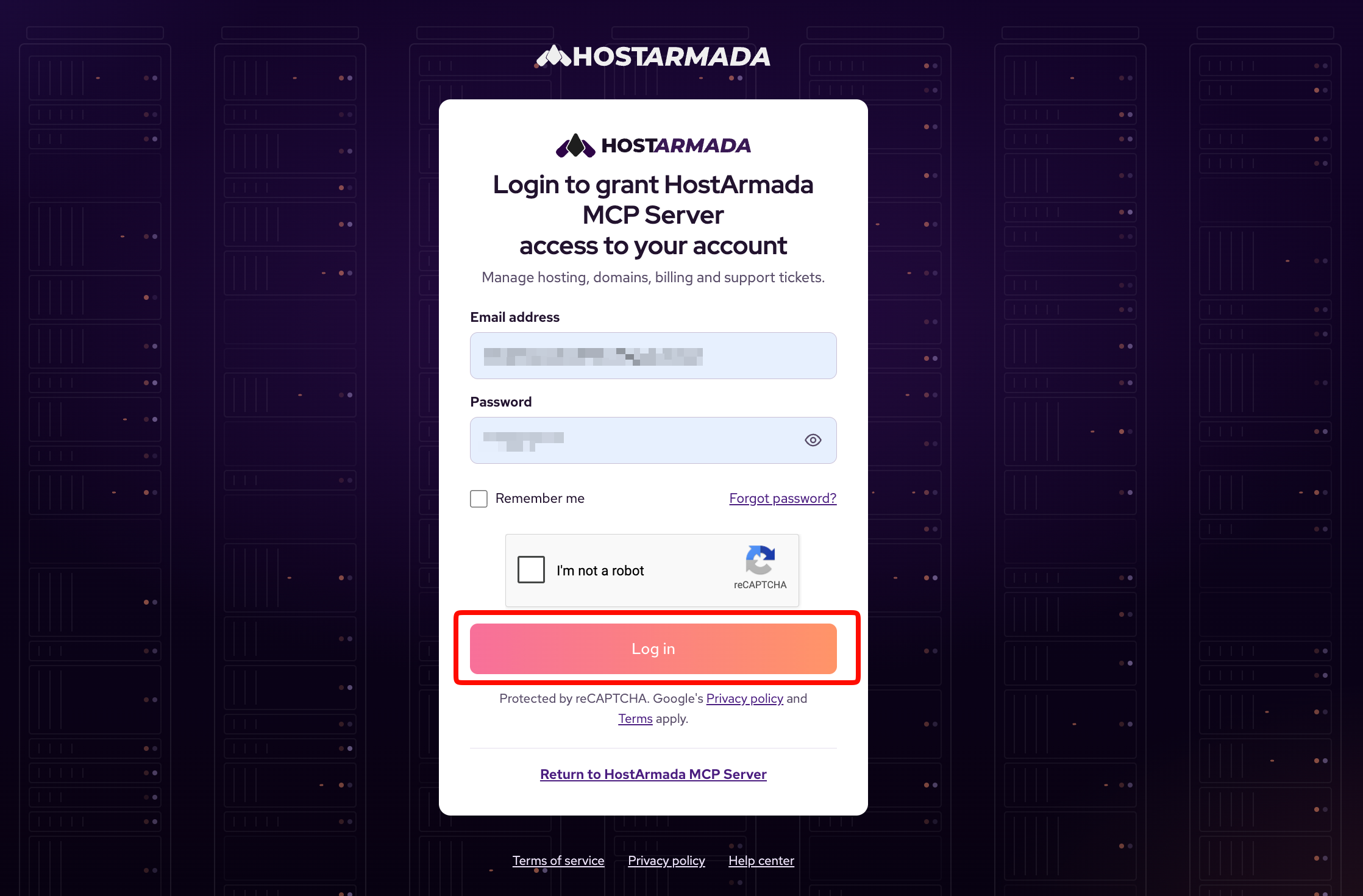
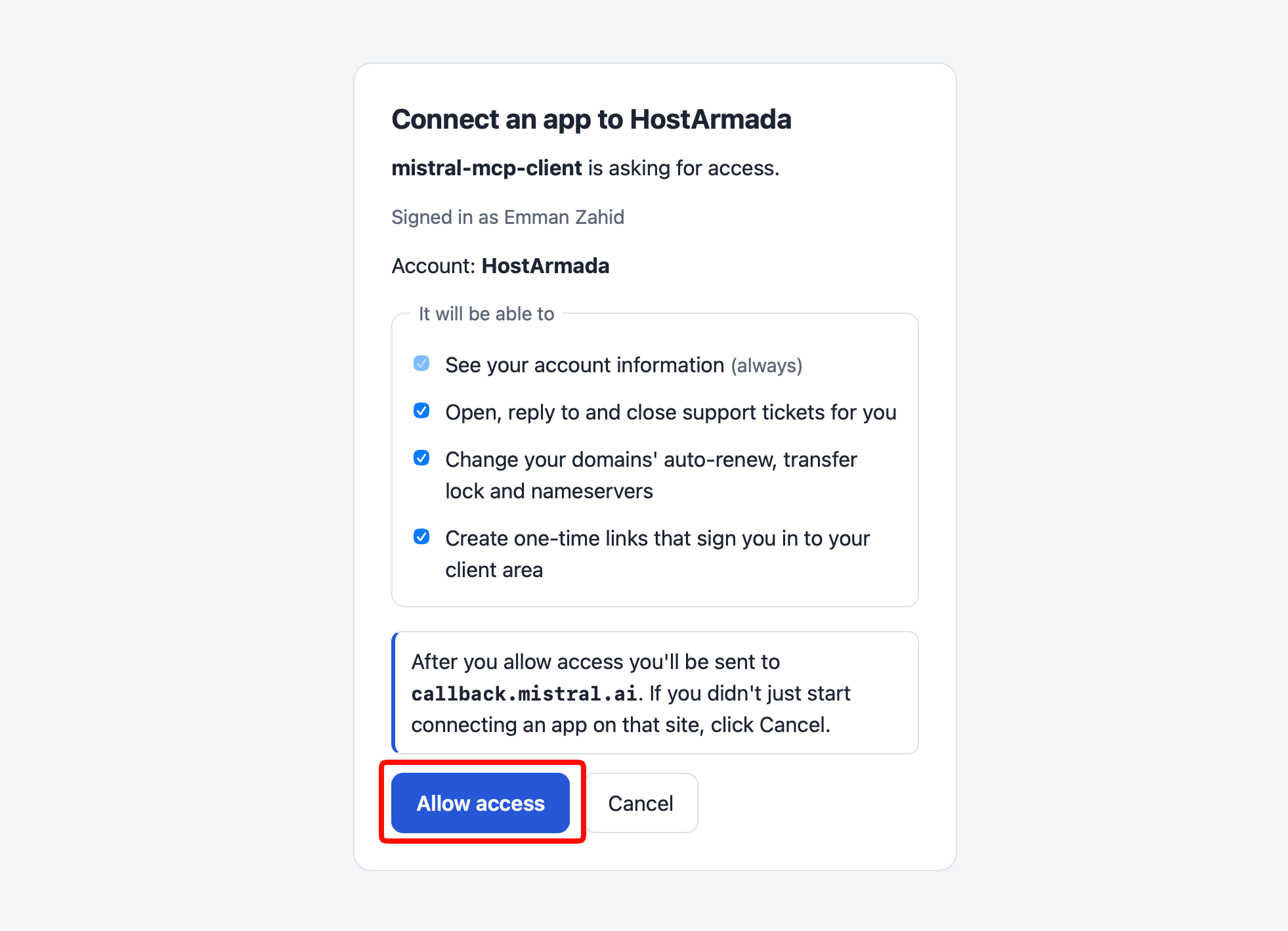
And that’s it! You will be redirected back to Mistral, and the HostArmada connector will appear under My connectors.
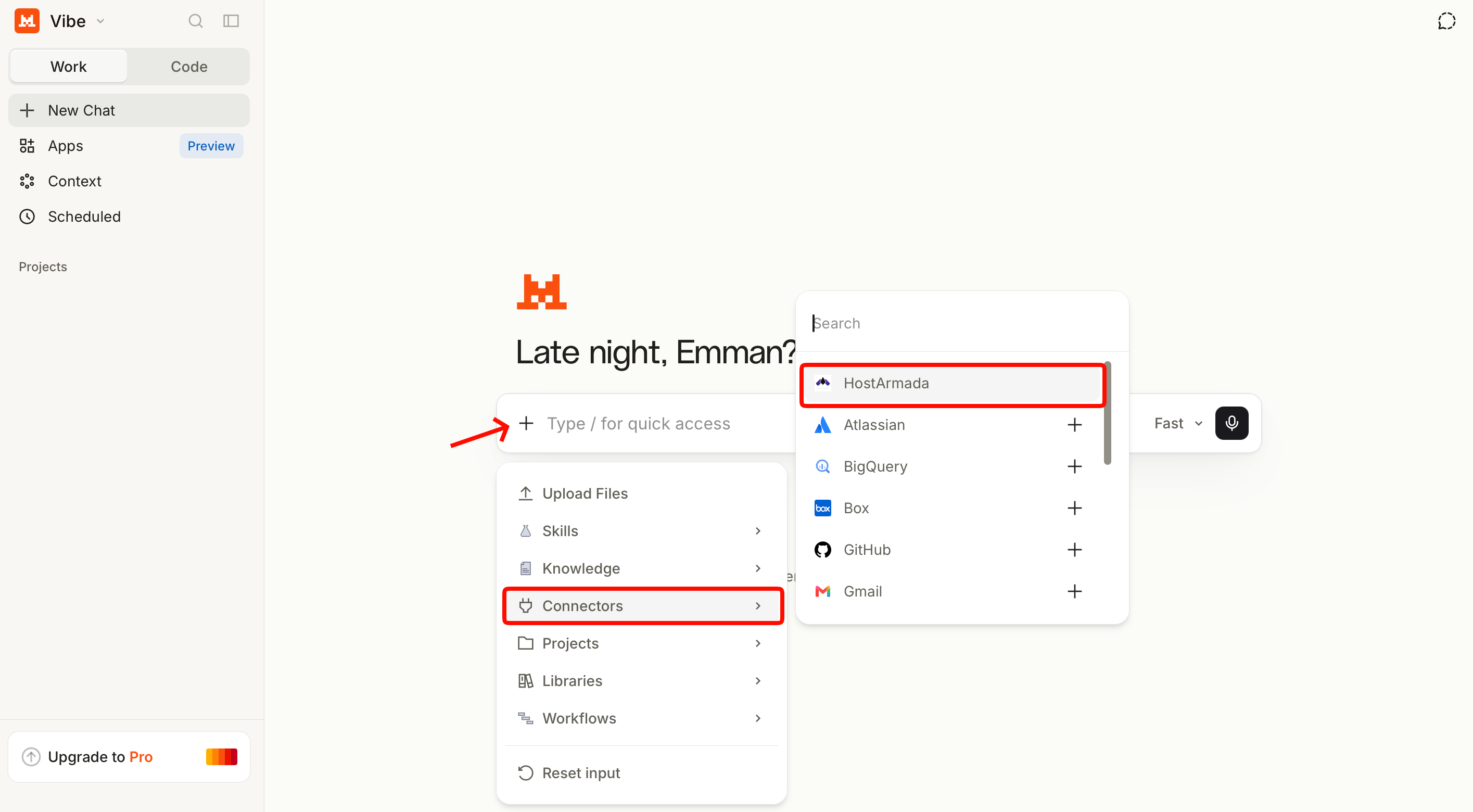
As a result. Mistral AI Vibe will reply with your profile, credit balance, active services and domains, unpaid or overdue invoices, and open tickets.
On a Team or Enterprise plan, only an admin can add a custom connector. The admin will need to follow the Step 1 section outlined above to add the HostArmada connector for the organization.
Once the connector is added, each team member can find it on the Connectors page and sign in using their own HostArmada account.
Each member can only access and manage the HostArmada account they've connected. Admins cannot access or view other members' HostArmada data.
To stop using the HostArmada connector in a conversation, just don’t select it in the chat.
To remove it completely, go to Context > Connectors and select the HostArmada connector. Click the three vertical dots, then select Delete.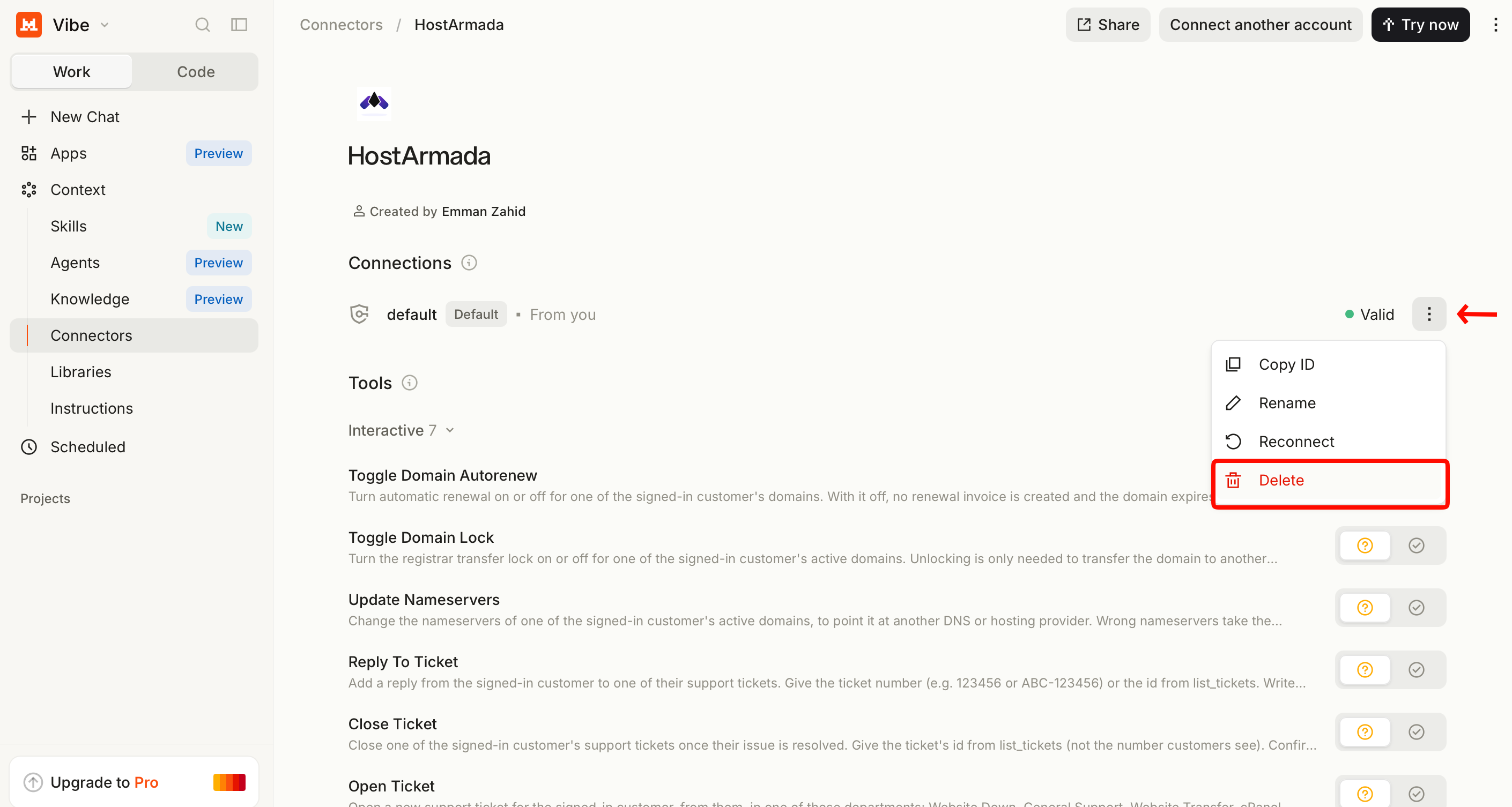
In the confirmation pop-up, click Delete & Disconnect. This permanently removes the connector and disconnects it from your account.
|
Problem |
What to do |
|
I can't find + Add Connector or the Custom MCP Connector tab |
On a Team or Enterprise plan, only an admin can add connectors. Ask your admin to follow Step 1. |
|
Vibe shows "MCP connection requires additional information or is invalid" |
Check that the URL is exactly https://mcp.hostarmada.com/, with no extra spaces. Then try again. |
|
The connector name isn't accepted |
Use letters only, with no spaces or special characters, for example, HostArmada. |
|
The sign-in page won't load or keeps failing |
Remove the HostArmada connector, add it again, and sign in with the account owner's login. |
|
Vibe doesn't use my HostArmada account |
Check that the HostArmada connector is turned on in the tools menu of that conversation. |
|
Vibe can't find another customer's account or domain |
That's by design. The HostArmada connector only works with the account you signed in with. |
|
Vibe says I've hit a limit |
Wait a moment and try again. You can make up to 60 requests per minute, and up to 5 domain lookups per minute (60 per hour). Opening and replying to tickets have their own limits. |
Need help?
If you get stuck, feel free to open a ticket or chat with HostArmada support. Tell us which AI app you're using and the step where you got stuck. Our team is ready to assist you 24/7.

Emman is a Content Manager at HostArmada where she helps make complex topics accessible for readers around the world. With 5+ years of experience in crafting SEO content, she’s passionate about making tech topics easy to understand. In her free time, Emman enjoys traveling and watching Formula 1/E races.
Learn more about MCP in the other tutorials that we have:
